


Organization Management#
Create Organization - Admin#
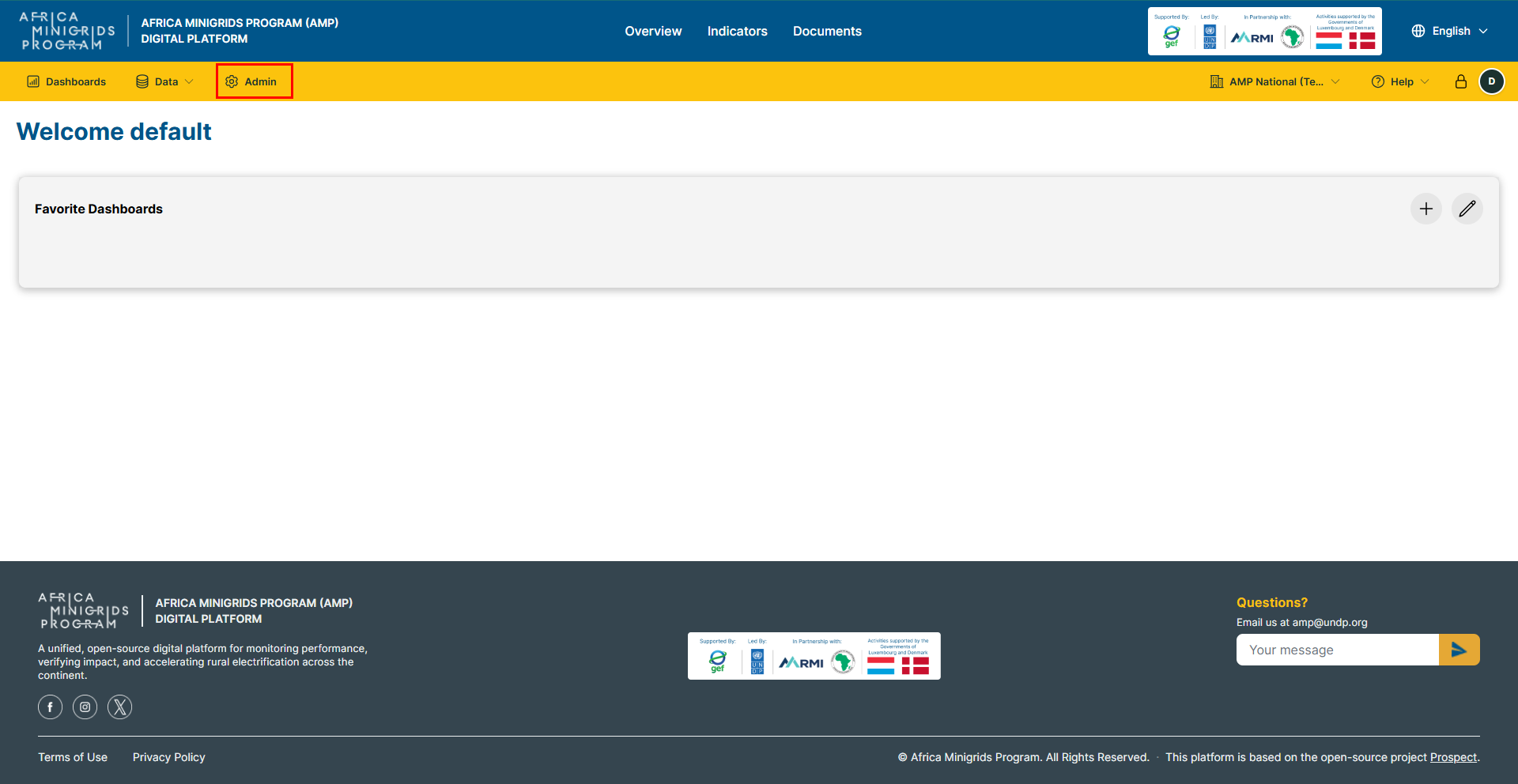
On the homepage, click
Adminon the yellow navigation bar.
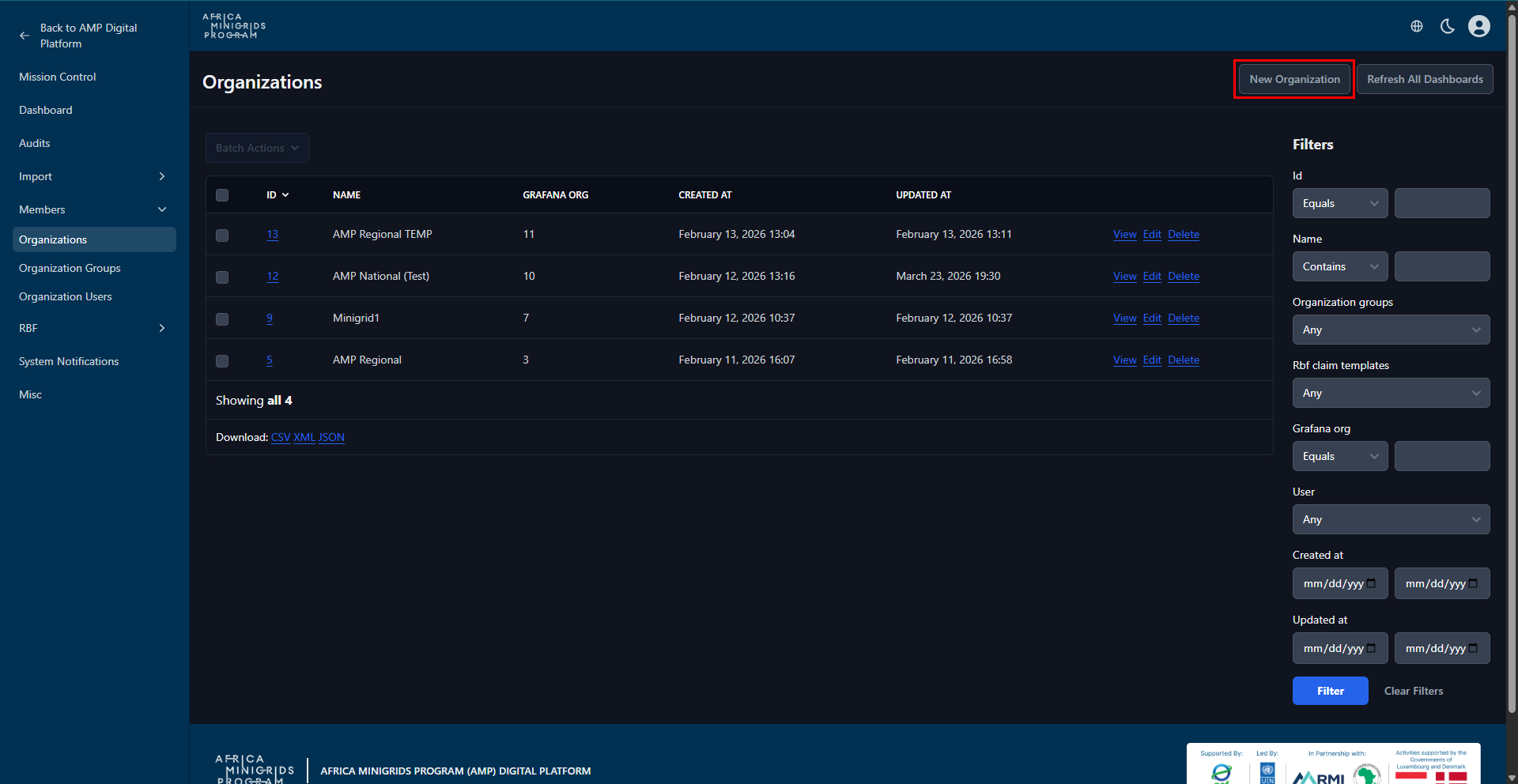
Click
New Organizationto open the organization creation form.
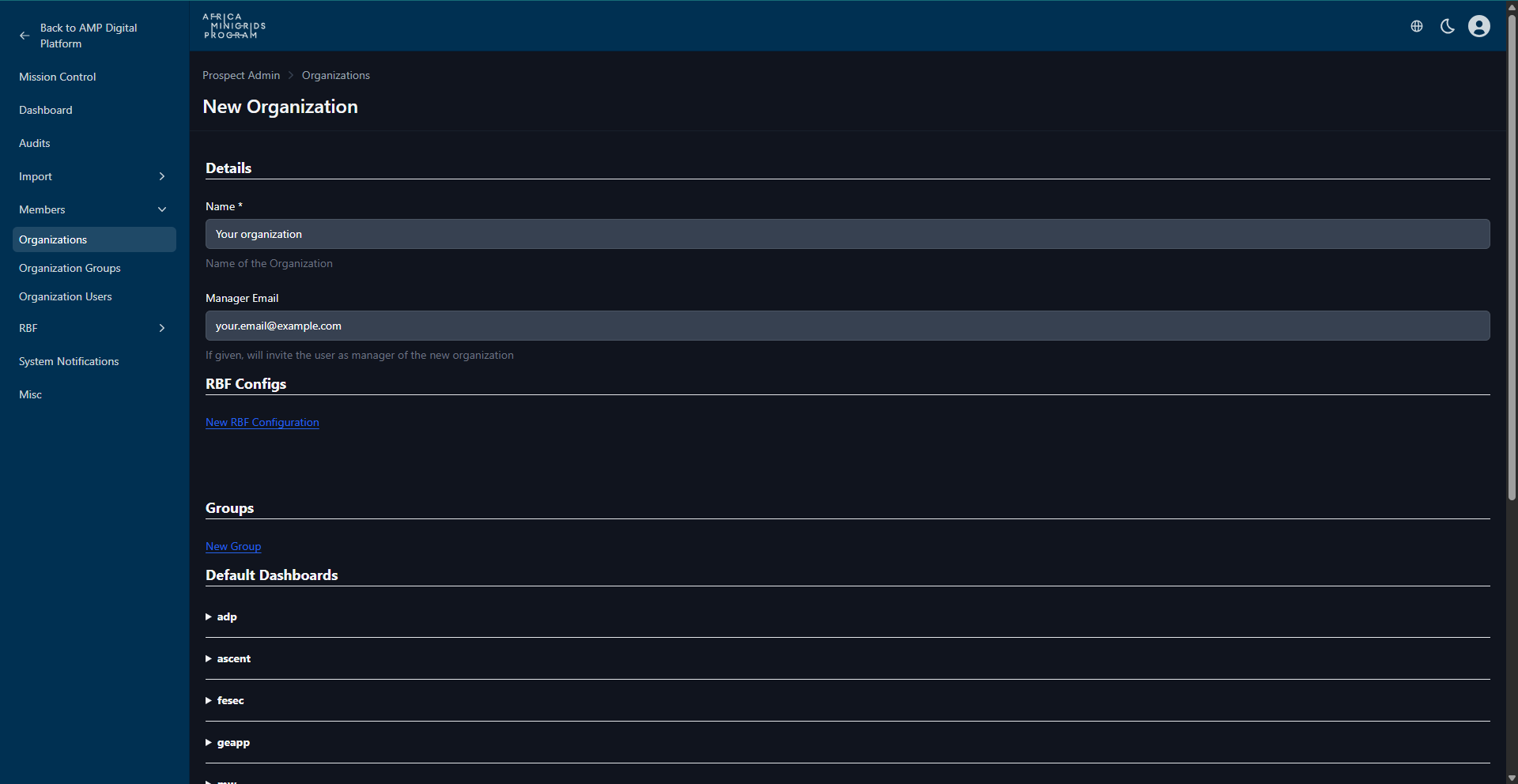
Fill in the form provided and click
 to create the organization.
Edit Organization - Admin#
On the homepage, click
Adminon the yellow navigation bar.
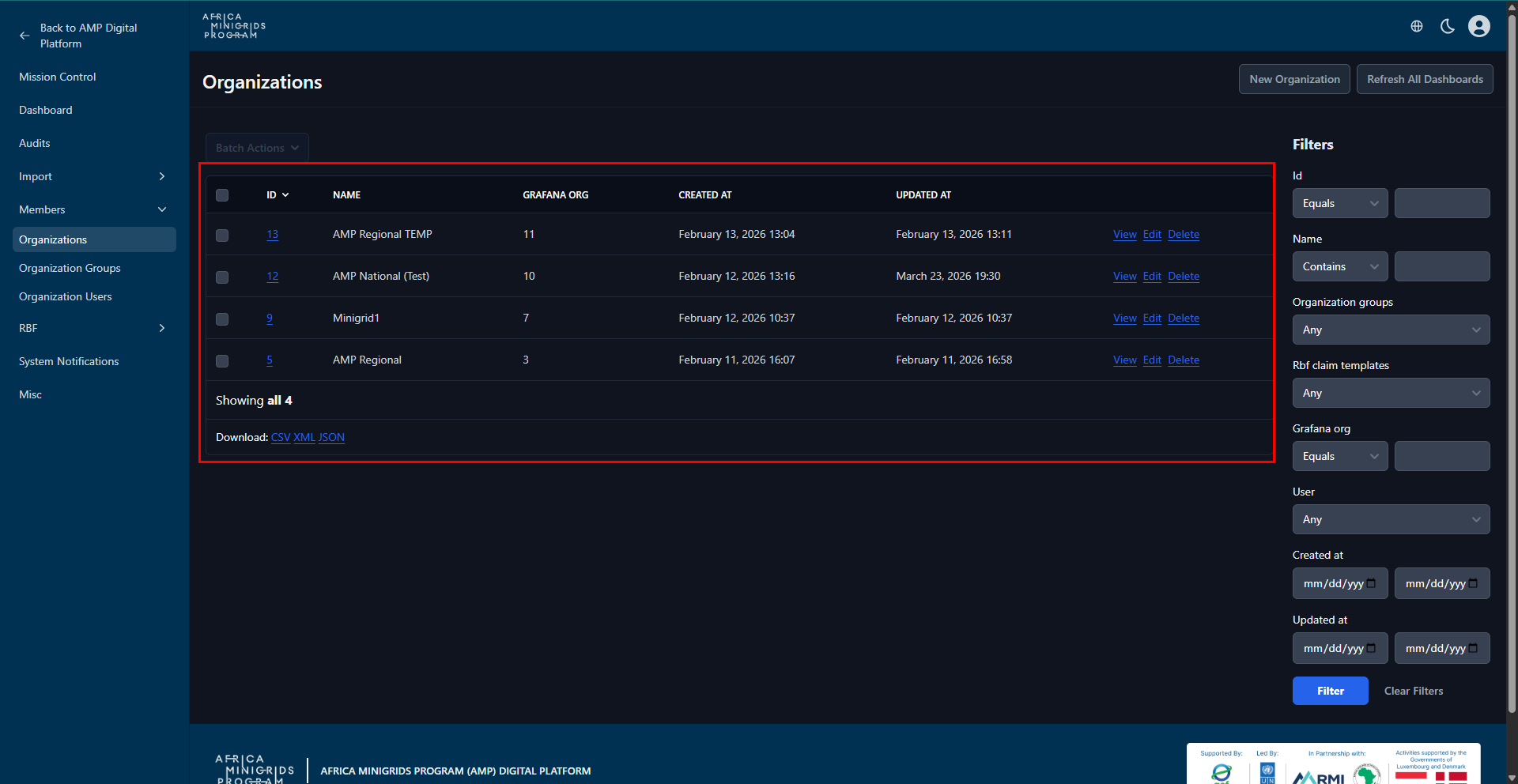
On the organizations table, click your organization’s id to open the organization page.
Click
Edit Organizationto open the organization edit form.
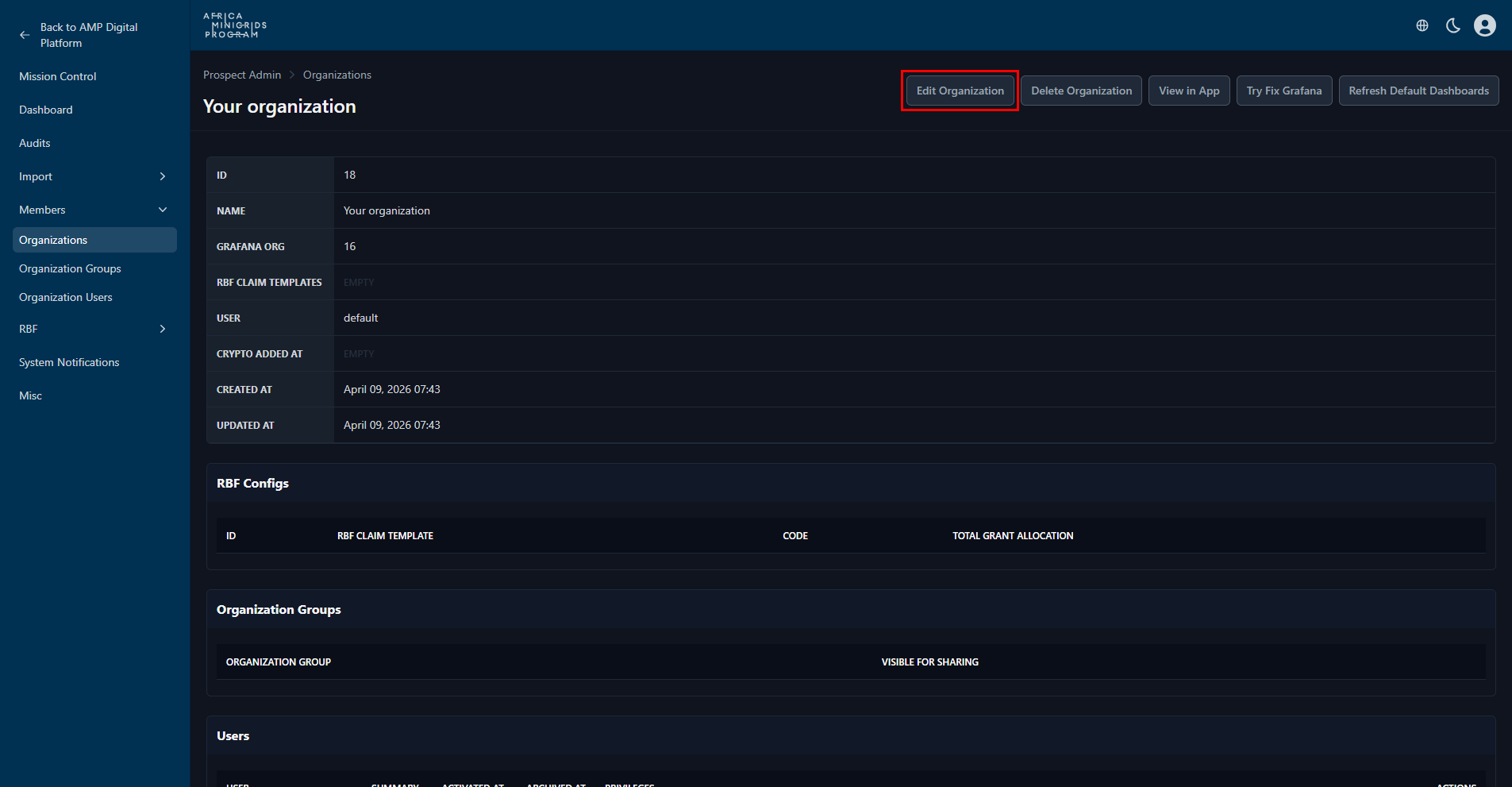
Fill in the form provided and click
 to save the changes.

Delete Organization - Admin#
On the homepage, click
Adminon the yellow navigation bar.
On the organizations table, click your organization’s id to open the organization page.
Click
 to delete the organization.
Note
You may be prompted to confirm the deletion. Click OK to proceed with the deletion or Cancel to abort.
Deleting an organization is irreversible. All data associated with the organization will be lost.
Edit Organization#
On the homepage click the dropdown button with your organization name.
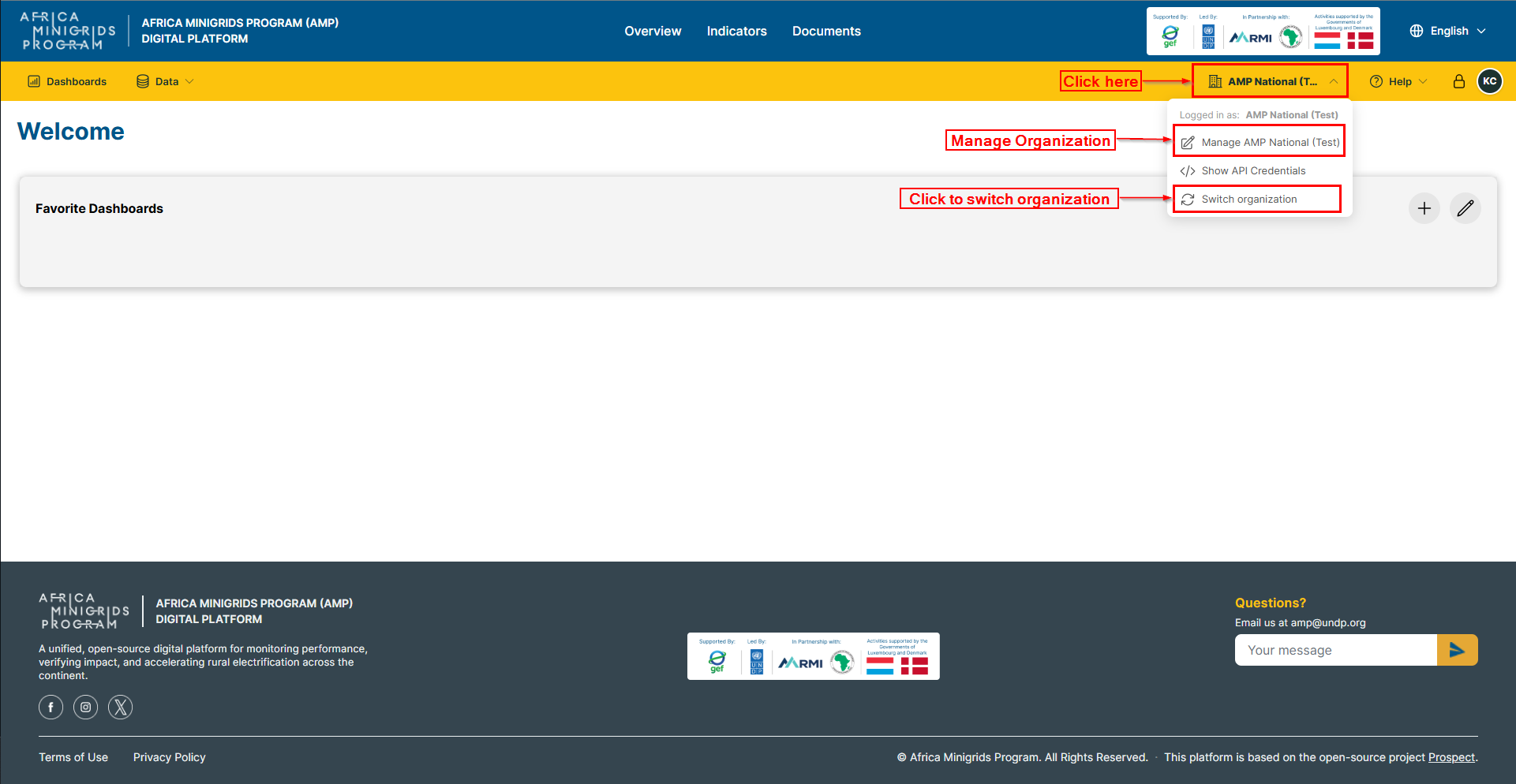
On the dropdown menu click
Manage Organizationto open the organization page
Note
The button may have your organization name on it.
Click
Manageand selectEdit.
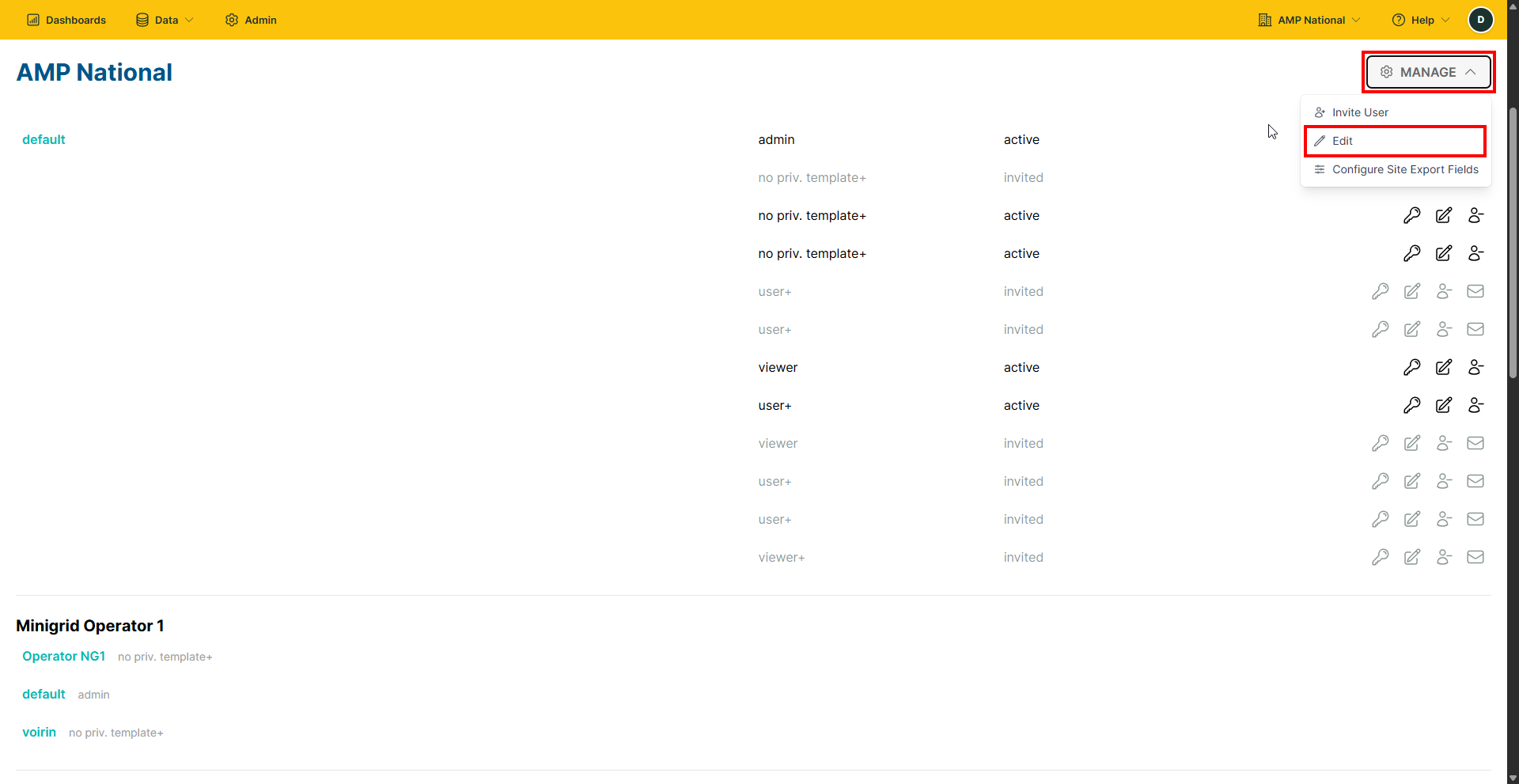
Fill the form provided and click
SAVE CHANGESto save the changes.

Hint
You can click CANCEL to go back or cancel the changes.