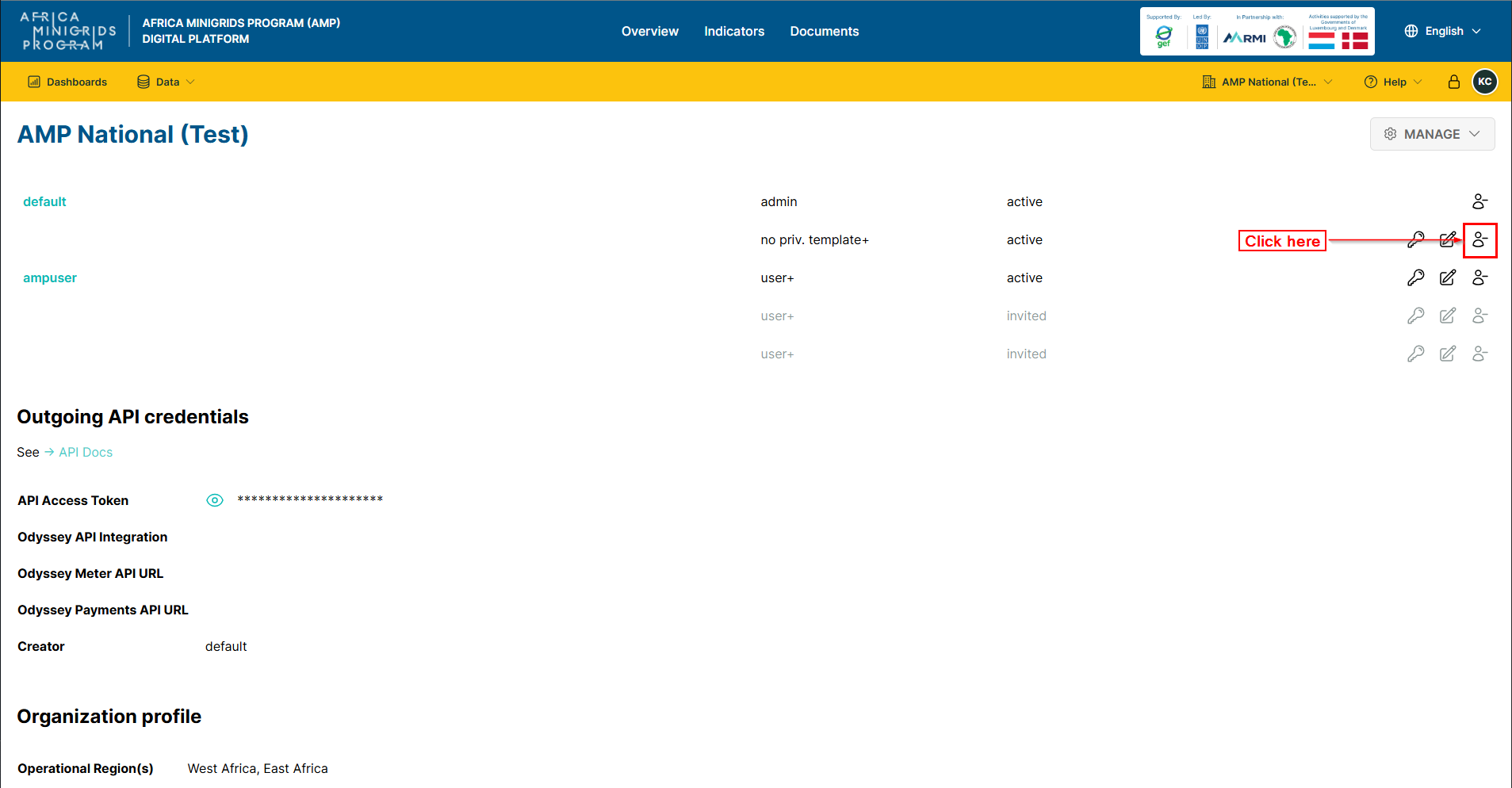


Accounts#
Accepting Invitation#
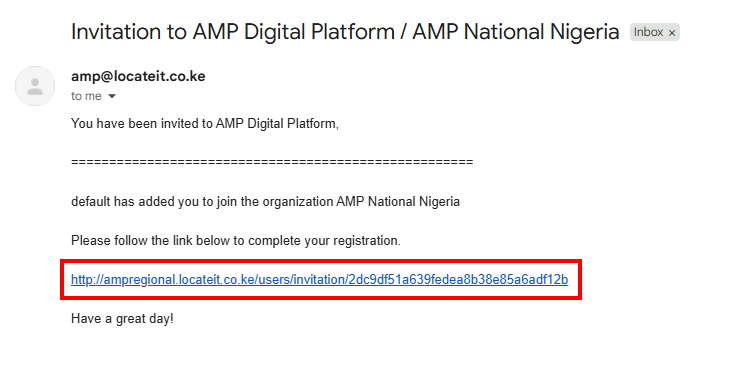
When the administrator invites you to the platform, you will receive an email with the subject
Invitation to AMP Digital Platform. Click the link in the email to accept the invitation.
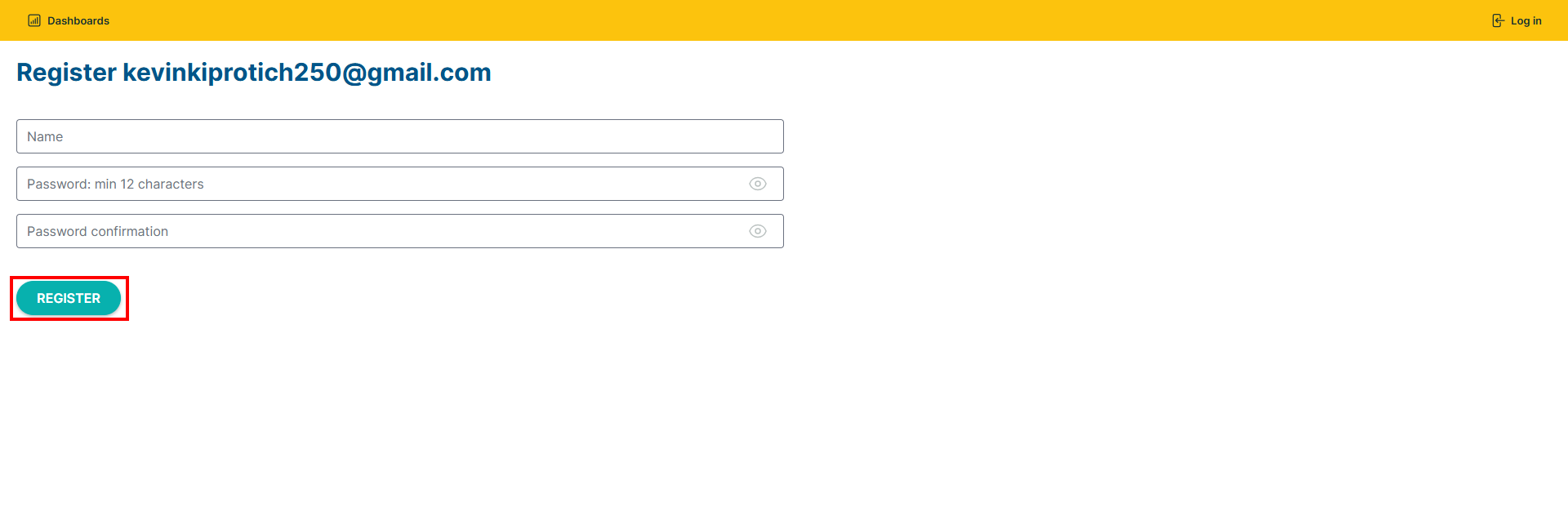
Create a password for your account and click
 .
.
Login#
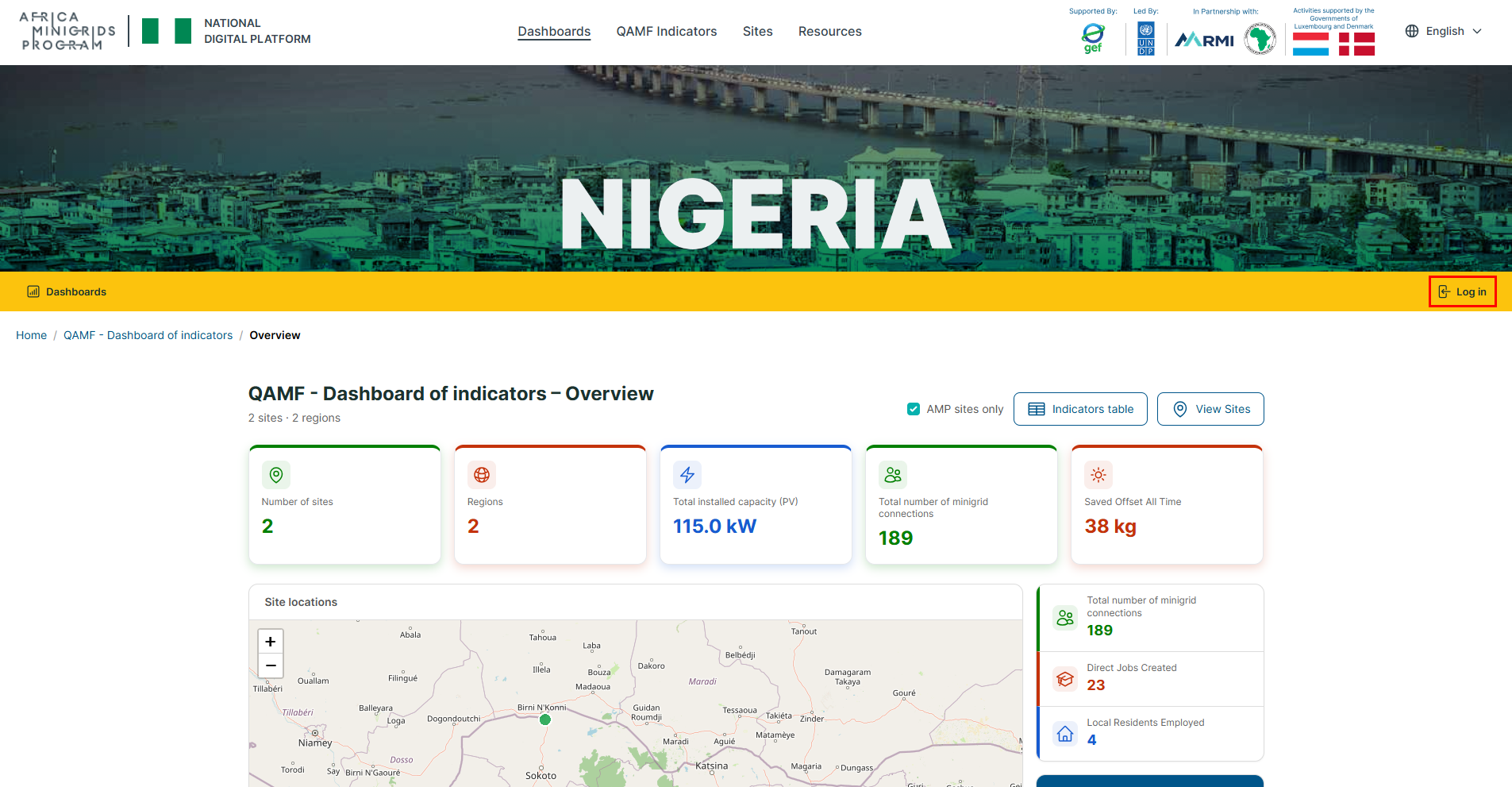
On the click any of the buttons on the top navigation.

Click the
Log Inon the yellow bar
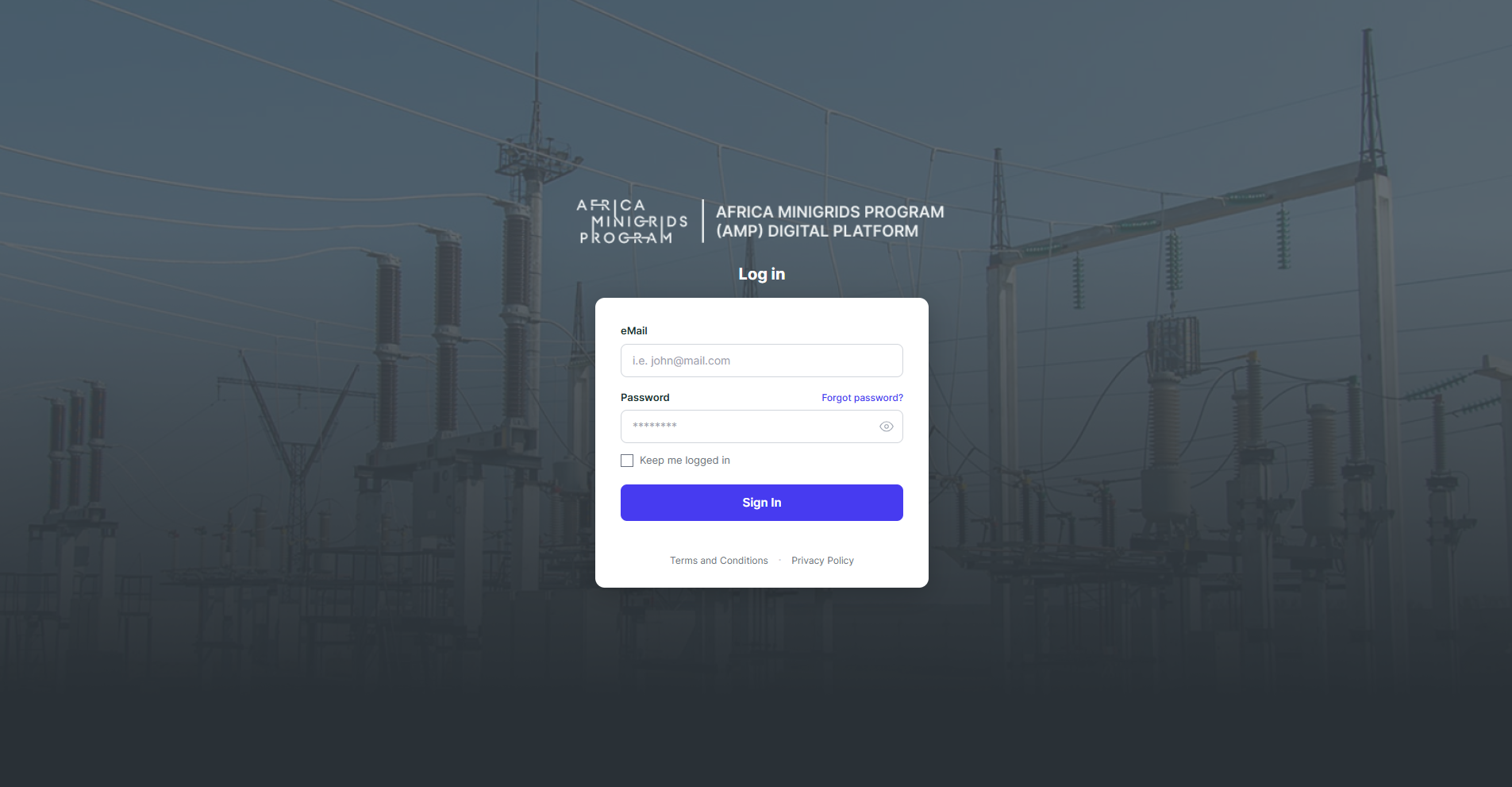
Fill in the login form with your email and password
Note
An administrator must register your account and invite you to the platform though your email first. If your account does not exist, please reach out to your system administrator.
Viewing Notifications#
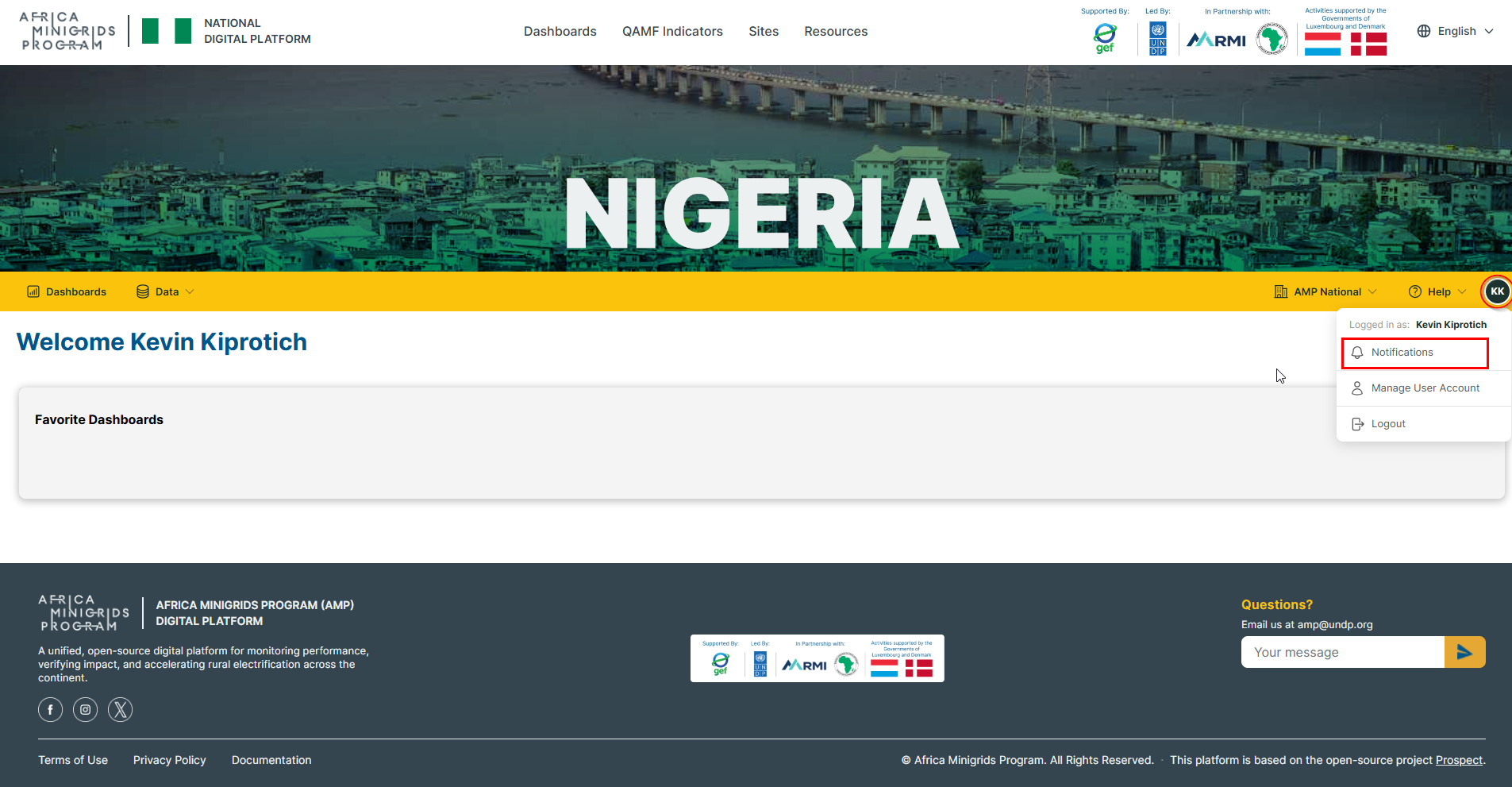
On the homepage, click the circle containing your initials and select notifications.
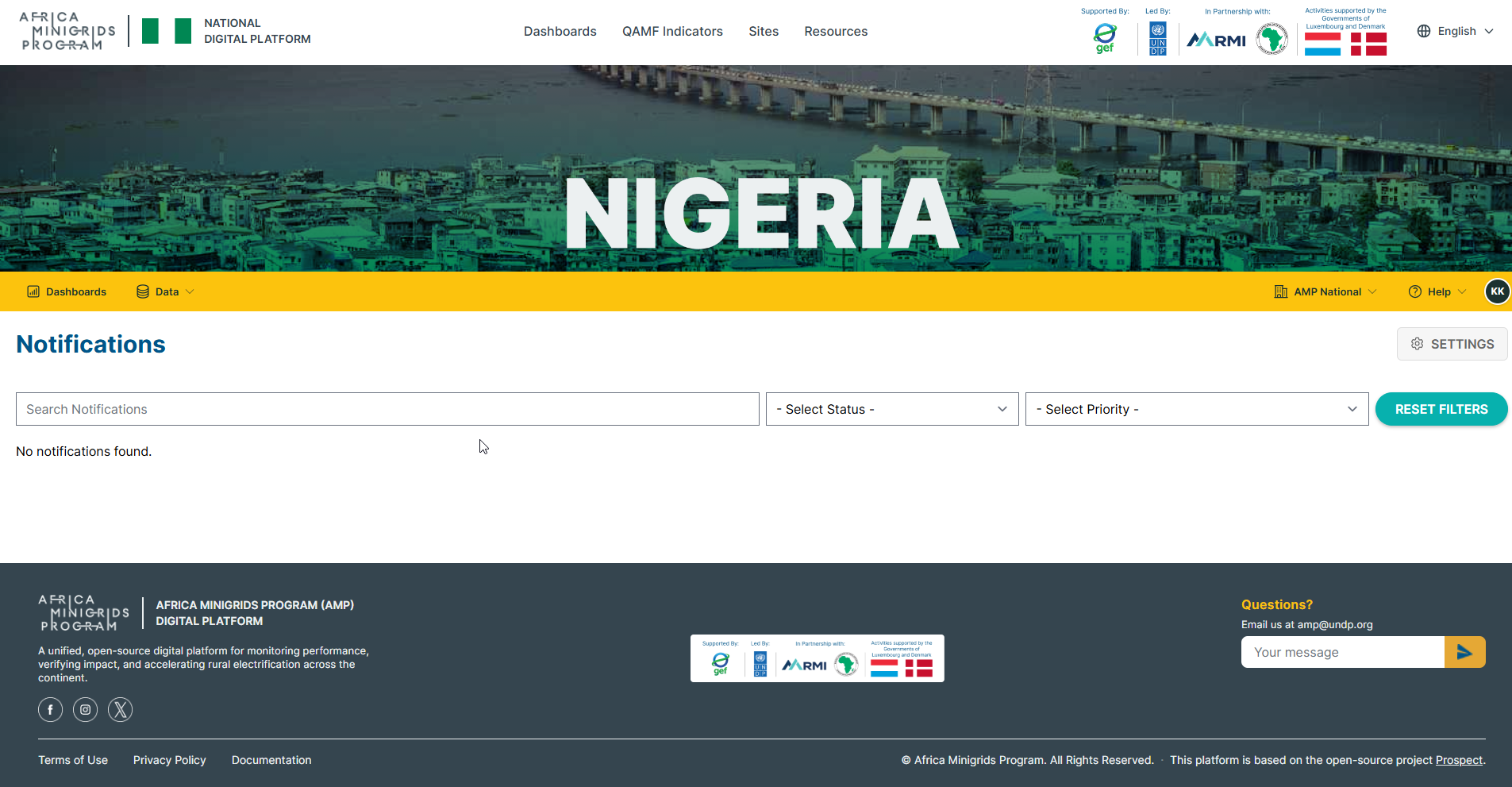
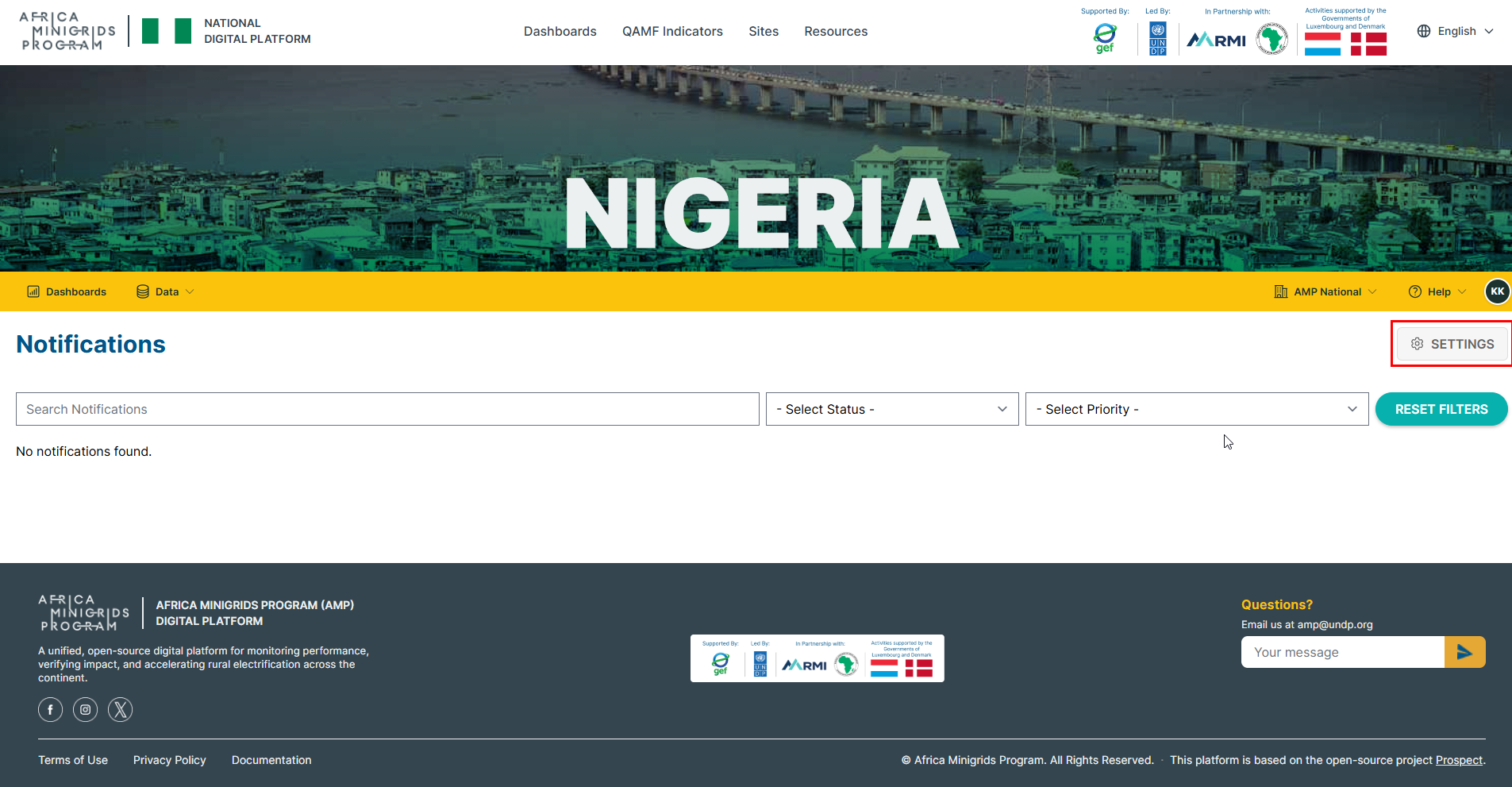
This will open the notifications page where you can see any notifications that have been sent to you.
Notification Preferences/Settings#
On the homepage, click the circle containing your initials ans select notifications.
Click
Settings.
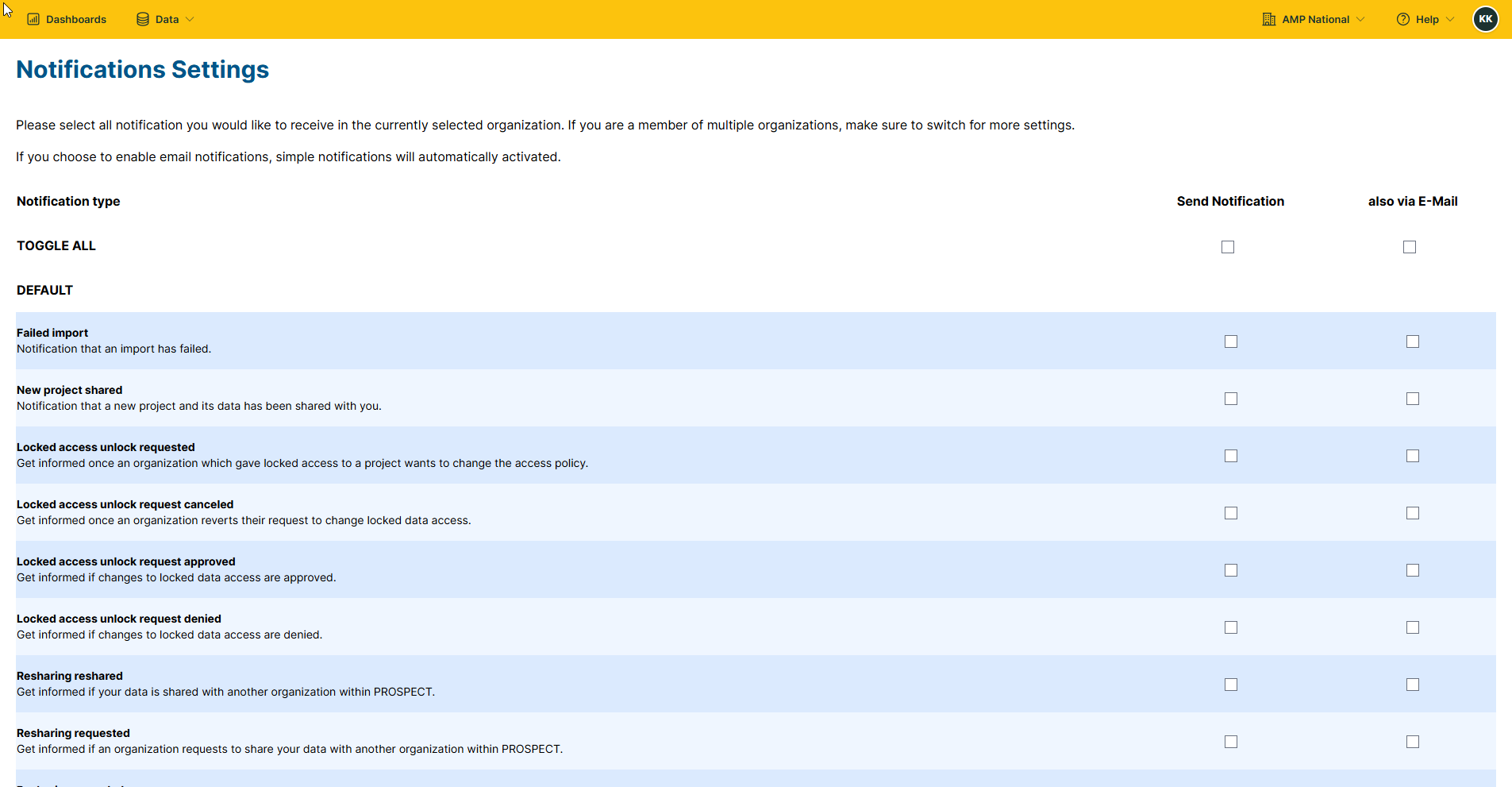
Click the different checkboxes to change your notification preferences.
Manage users#
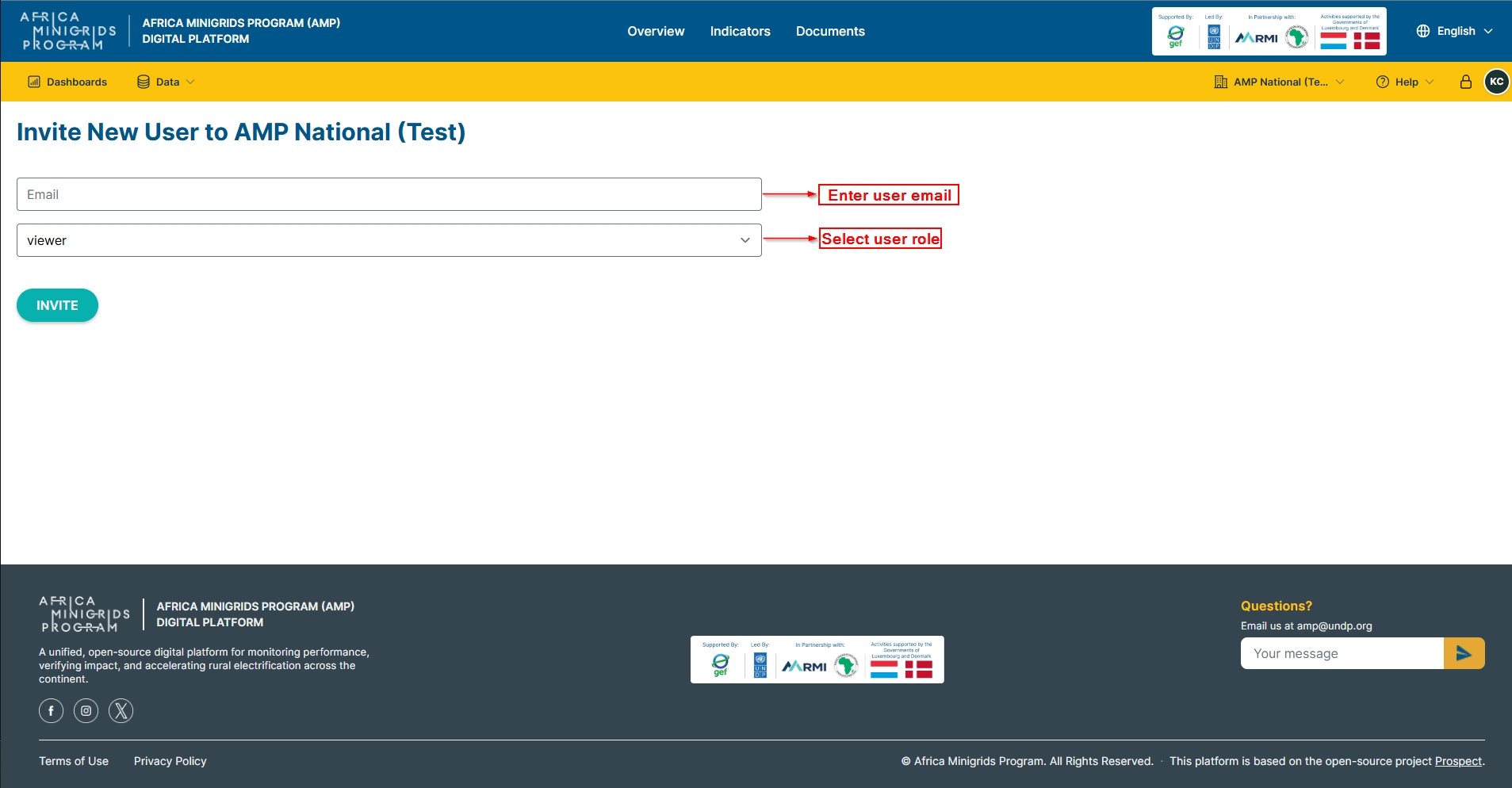
Invite user#
On the homepage click the dropdown button with your organization name.
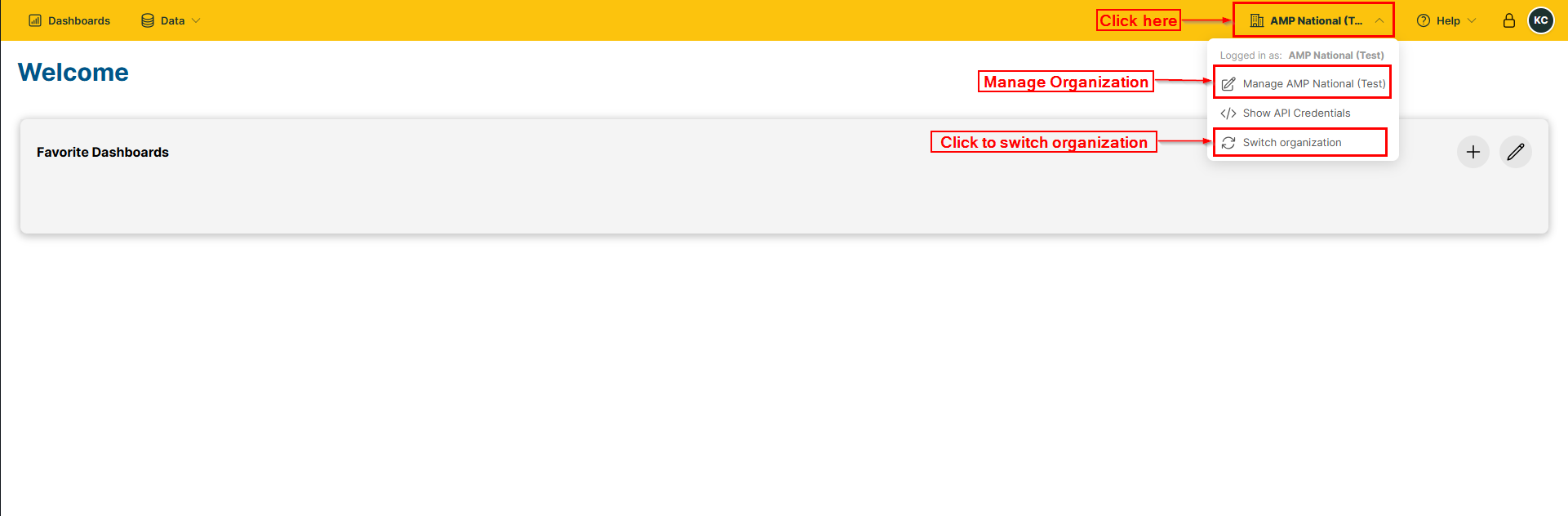
Click
MANAGEand selectInvite User
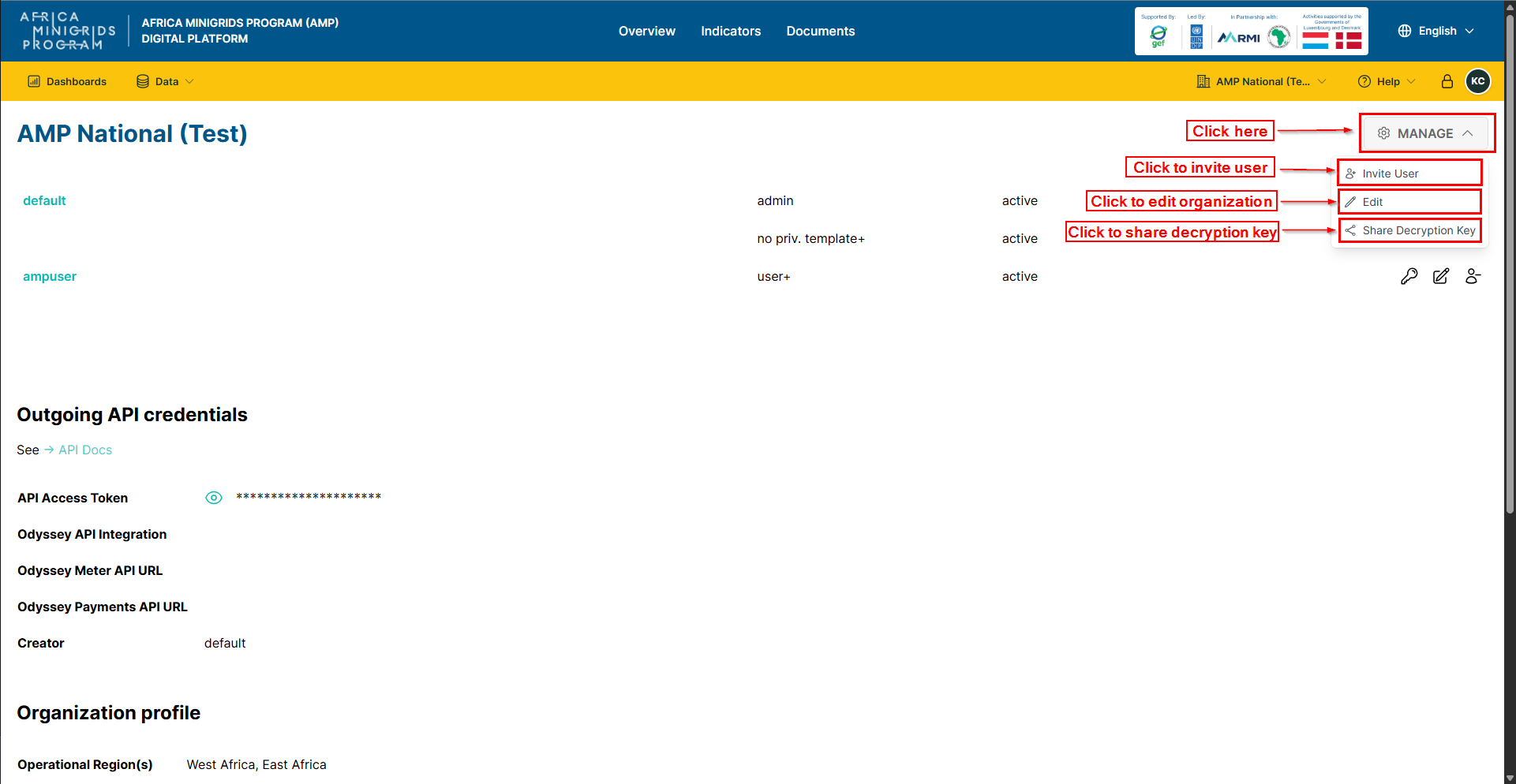
Fill in the form provided and click
INVITE.
Update user privileges#
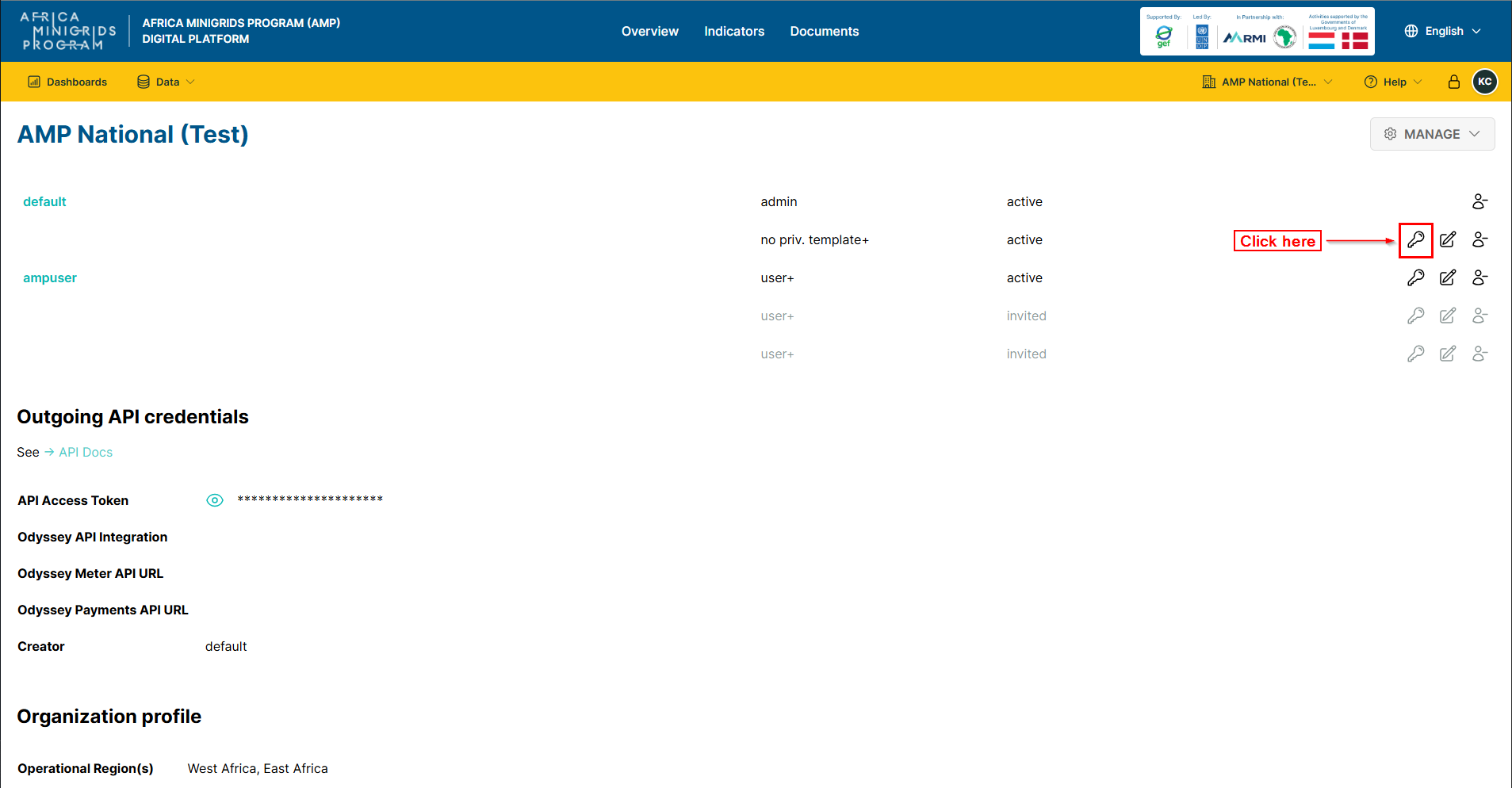
On the homepage click the dropdown button with your organization name
Click
 to open the privileges form
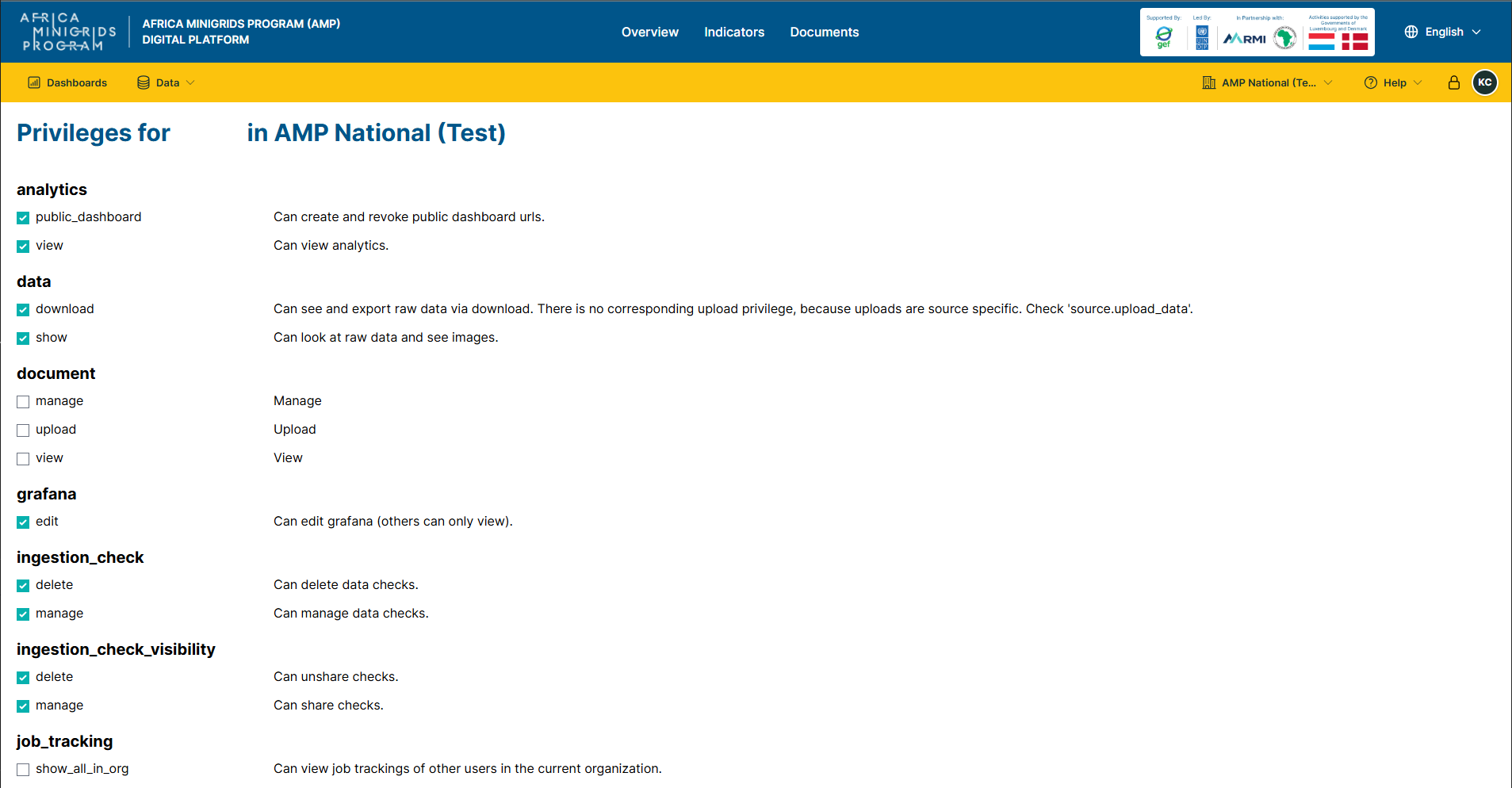
Edit the form provided to change the user’s privileges
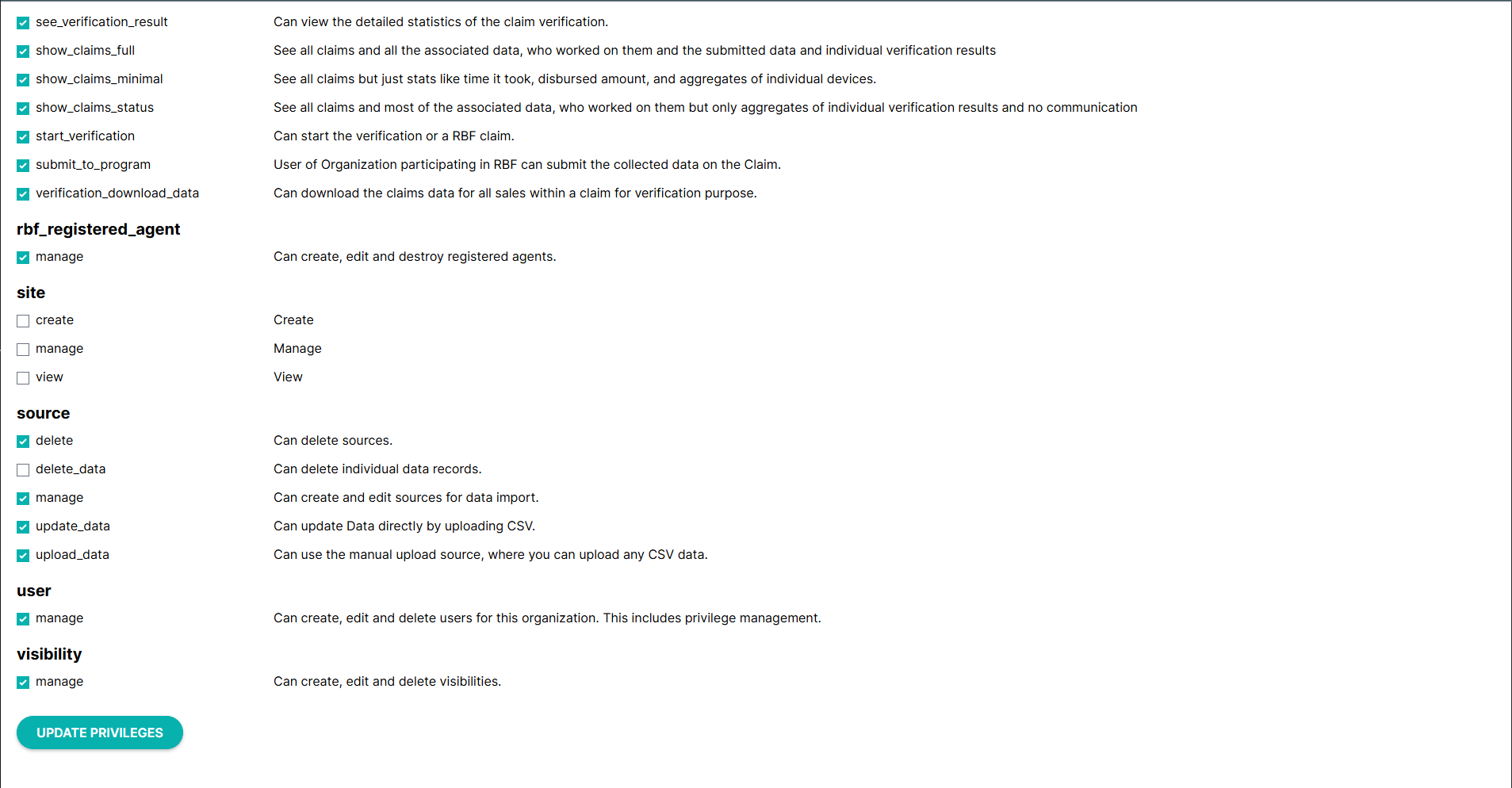
Click
UPDATE PRIVILEGESat the bottom of the form to save
Remove user#
On the homepage click the dropdown button with your organization name
Click
 to remove a user